Downloader Setup: Firestick, Android, Google TV

  • Install Downloader on Firestick/Fire TV

    Step #1: From your device’s home screen, hover over the "Search" option and then click the search box.
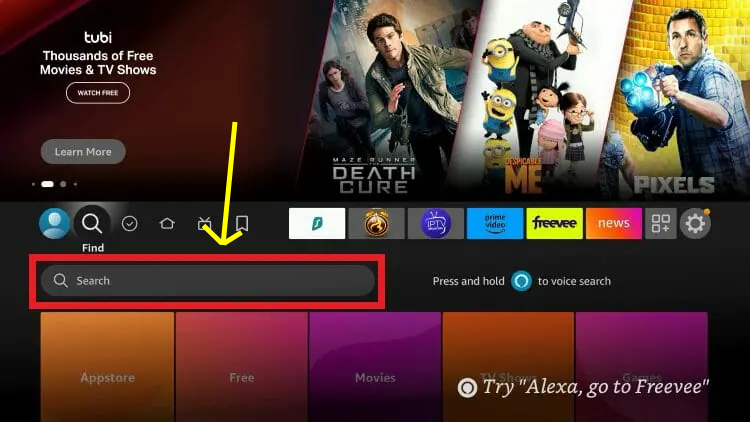
    A screen from a streaming device's interface, showcasing a search bar highlighted with a yellow arrow, along with various movie and TV show options, including titles like 'Maze Runner: Death Cure', 'Despicable Me', and 'Pixels'.
  • Install Downloader on Firestick/Fire TV

    Step #2: Search for “Downloader” and select the app when it appears in the results.
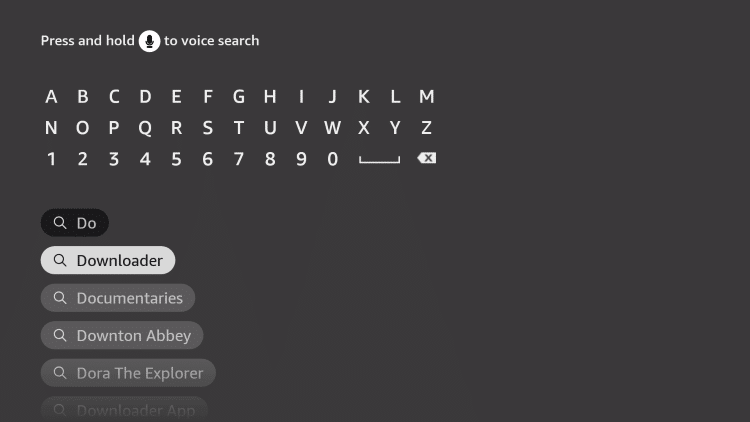
    A digital interface with a dark background displaying an alphabetical and numerical keyboard, and a list of search suggestions including 'Do', 'Downloader', 'Documentaries', 'Downton Abbey', 'Dora The Explorer', and 'Downloader App'.
  • Install Downloader on Firestick/Fire TV

    Step #3: Locate and choose the Downloader app from the search results to begin the installation process.

    Screenshot of a digital interface featuring a download app for Amazon Fire TV, with icons for apps, movies, and search options, and a menu on the right side.
  • Install Downloader on Firestick/Fire TV

    Install Downloader on Click on “Get” or “Download” to begin installing the Downloader app onto your device.
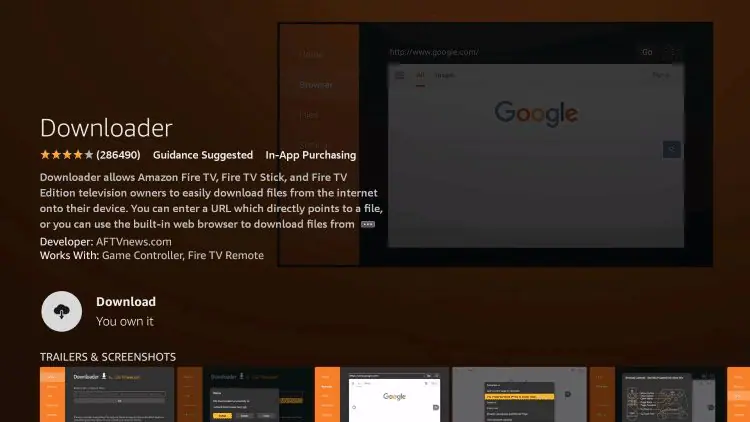
    Screenshot of a digital device displaying the Google homepage. The screen shows the Google logo and search bar, with a dark background. There is a section with app details and ratings below the screen.
  • Install Downloader on Firestick/Fire TV

    Step #5: Wait for the Downloader app to fully install on your device—this may take a few moments depending on your internet connection.
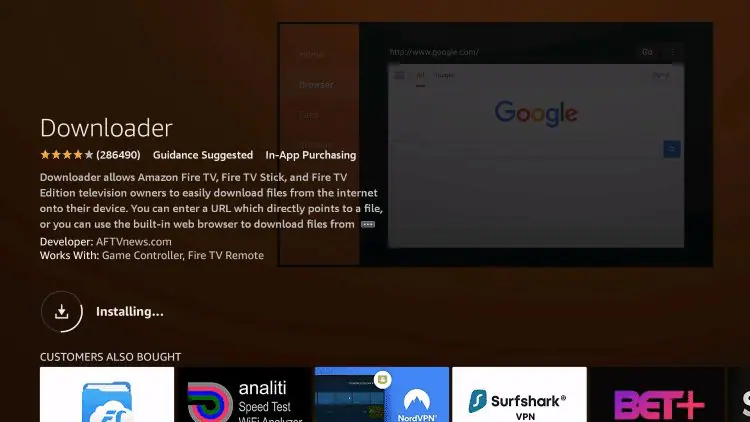
    Screenshot of a tablet displaying the Google homepage, with a dark wooden background and app installation in progress.
  • Install Downloader on Firestick/Fire TV

    Step #6: You will see a notification in the bottom right-hand corner once installation has finished.
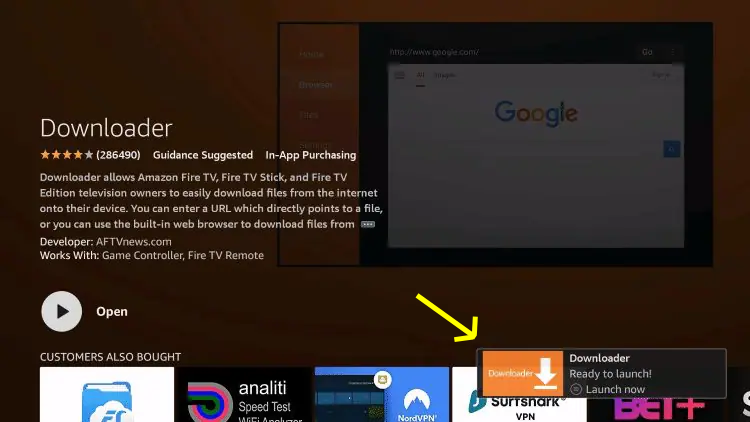
    Screenshot of a mobile app store featuring a downloader app with an orange icon. A tooltip shows the app is ready to launch with a "Launch now" button.
  • Install Downloader on Firestick/Fire TV

    Step #7: Go back to your device’s Settings menu, scroll down, and click on “My Fire TV.

    Smart TV settings menu showing options including Profiles, Account & Profile Settings, Network, Display & Sounds, Applications, Equipment Control, Live TV, Controllers & Bluetooth Devices, Alexa, Preferences, Accessibility, Help, and highlighted My Fire TV
  • Install Downloader on Firestick/Fire TV

    Step #8: From the My Fire TV menu, scroll down and select “About” to view device information and access developer options.

    Screenshot of a Fire TV with menu options including About, Legal & Compliance, Sleep, Restart, and Reset to Factory Defaults.
  • Install Downloader on Firestick/Fire TV

    Step #9: Hover over Fire TV Stick (or other name) and click the select button 7 times until you see “You are now a developer” message.

    Fire TV interface screen showing device information and settings menu, including device name, type, storage capacity, and current date and time.
  • Install Downloader on Firestick/Fire TV

    Step #10: Return to the My Fire TV tab and Developer options is now listed. Choose Install unknown apps.
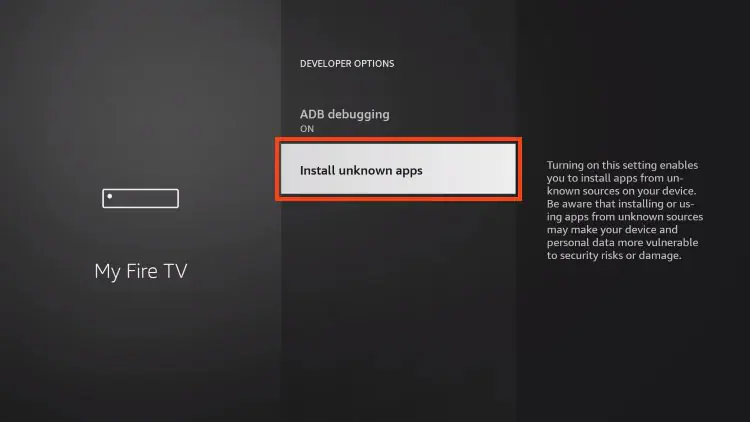
    TV settings menu on a Fire TV device showing the option to install unknown apps, with developer options and ADB debugging turned on.
  • Install Downloader on Firestick/Fire TV

    Step #11: You’ll see that the Downloader app is turned off—select it to switch it on and enable access.
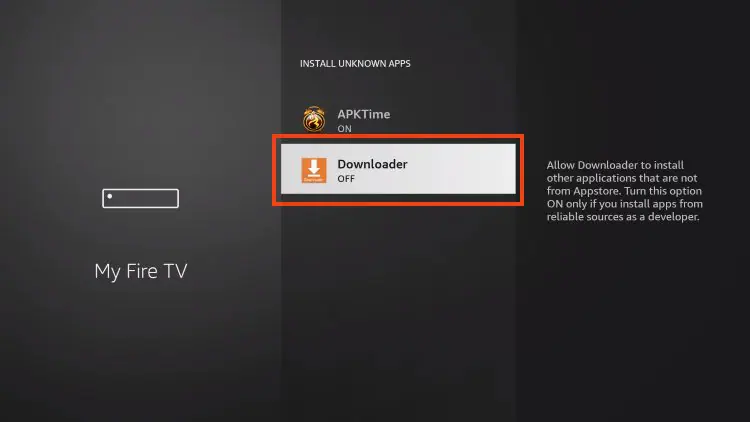
    Screenshot of a Fire TV interface showing the installation screen for unknown apps, with options for APKTime ON and Downloader OFF, and a note about allowing Downloader to install apps from unknown sources.
  • Install Downloader on Firestick/Fire TV

    Step #12: Unknown Sources has now been enabled for the Downloader app which we will use to install TiviMate.
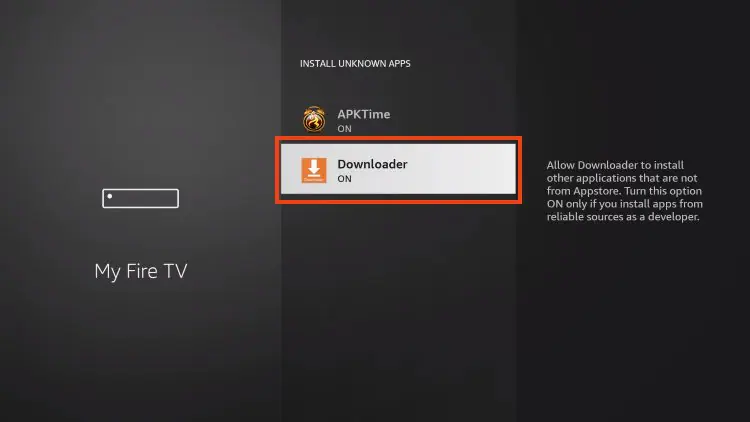
    Fire TV screen displaying 'Install Unknown Apps' menu with 'Downloader' app turned on and highlighted.

After installing the Downloader app, your next step is to install the TiviMate app.
Use the Downloader app to enter the TiviMate download link.
👉 Click here for TiviMate installation instructions(only after Downloader is installed).

  • Install Downloader on Android TV or Android Box

    Step #1: Select the Google Play Store from the home screen.
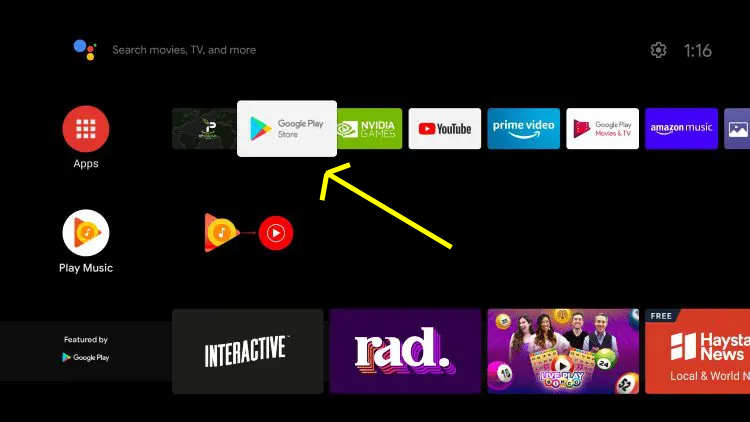
    Screenshot of a digital TV interface displaying app icons including Google Play Store, NVIDIA Games, YouTube, Prime Video, Amazon Music, and other entertainment apps.
  • Install Downloader on Android TV or Android Box

    Step #2: Click the search icon.
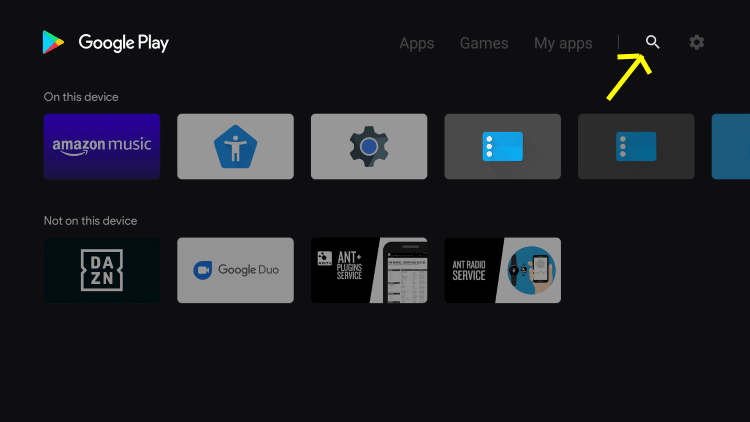
    Google Play store screen showing installed apps on the device, including Amazon Music, a fitness app, settings, file management, and more, with a search icon highlighted in yellow.
  • Install Downloader on Android TV or Android Box

    Step #3: Type in “downloader” and click Search.

    Screenshot of a digital device screen showing a search bar with the keyword 'downloader' and a keyboard, with various app icons below, including a downloader icon, NZB Leech, a logo, video-related icons, and Vimeo.
  • Install Downloader on Android TV or Android Box

    Step #4: Select Downloader by AFTVnews.
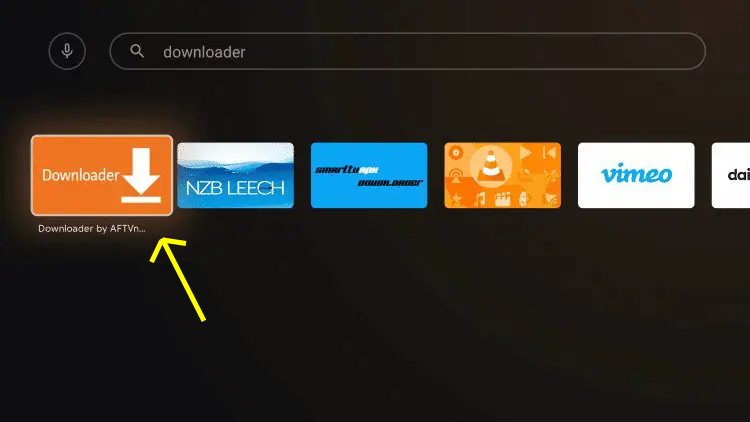
    Streaming app menu with icons including a downloader app, NZB Leech, a smart TV downloader, a VLC media player icon, Vimeo, and another app, with a yellow arrow pointing to the downloader app.
  • Install Downloader on Android TV or Android Box

    Step #5: Click Install.

    Computer screen displaying the Google search homepage, with a download app page and various app icons below.
  • Install Downloader on Android TV or Box

    Step #6: Installation is complete.

    Screenshot of a mobile app store page for a download manager app, showing the app's name, ratings, description, developer information, compatibility, and an orange 'Download' button with a tooltip indicating readiness to launch.

After installing the Downloader app, your next step is to install the TiviMate app.
Use the Downloader app to enter the TiviMate download link.
👉 Click here for TiviMate installation instructions(only after Downloader is installed).

  • Install Downloader on Google TV

    Step #1: Select the Google Play Store from the home screen.
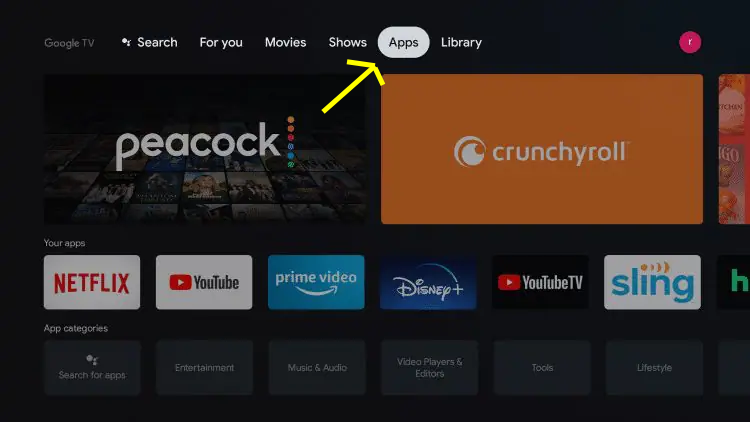
    A TV screen showing the Google TV interface with a menu that includes 'Search,' 'For you,' 'Movies,' 'Shows,' 'Apps,' and 'Library.' The 'Apps' section is highlighted with a yellow arrow. Below, there are app icons for Netflix, YouTube, Prime Video, Disney+, YouTube TV, and Sling.
  • Install Downloader on Install Downloader on Google TV

    Step #2: Click the search icon.
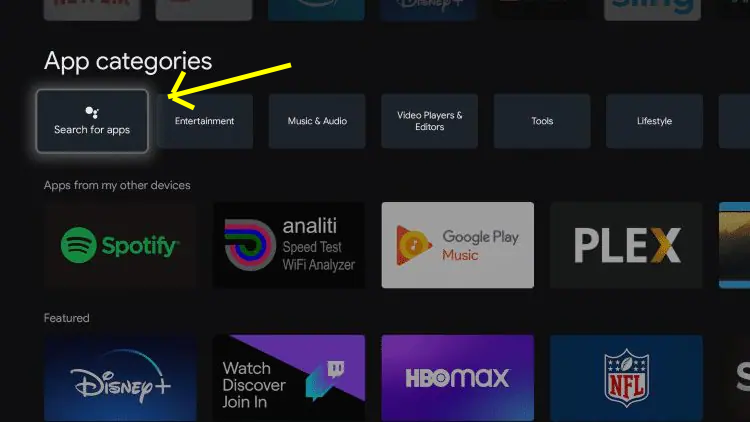
    Screenshot of a digital interface showing app categories, with the 'Search for apps' category highlighted in the 'Entertainment' section. Below, various app icons including Spotify, analiti WiFi analyzer, Google Play Music, Plex, Disney+, Twitch, HBO Max, and NFL are visible.
  • Install Downloader on Install Downloader on Google TV

    Step #3: Type in “downloader” and click Search.

    Screenshot of a digital interface with the word 'downloader' at the top, highlighted by a yellow arrow, and a virtual keyboard with text 'I Downloaded a Ghost' and 'Downloaded Child'.
  • Install Downloader on Install Downloader on Google TV

    Step #4: Select Downloader by AFTVnews.
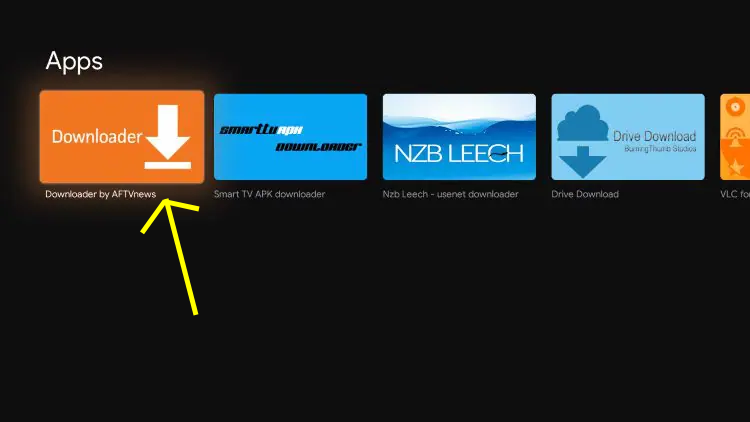
    Screenshot of a digital device displaying an app menu with icons labeled Downloader, Smart TV APK downloader, NZB Leecher, Drive Download, and VLC Player.
  • Install Downloader on Install Downloader on Google TV

    Step #5: Click Install.
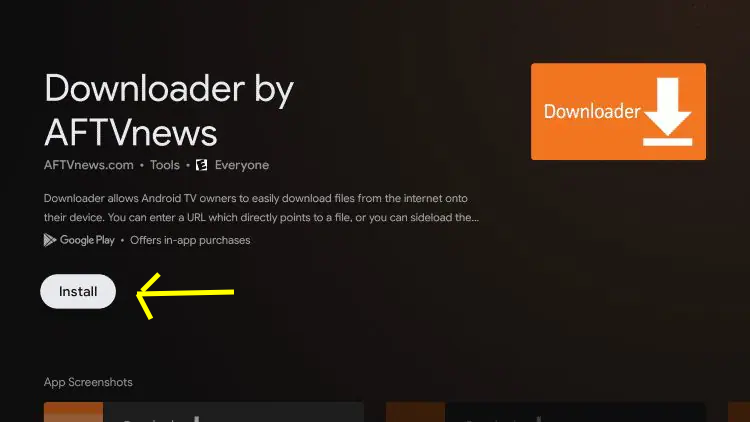
    A screenshot of the AFTVnews app page on the Google Play Store with an orange download button and a white 'Install' button highlighted by a yellow arrow.
  • Install Downloader on Install Downloader on Google TV

    Step #6: Installation is complete.
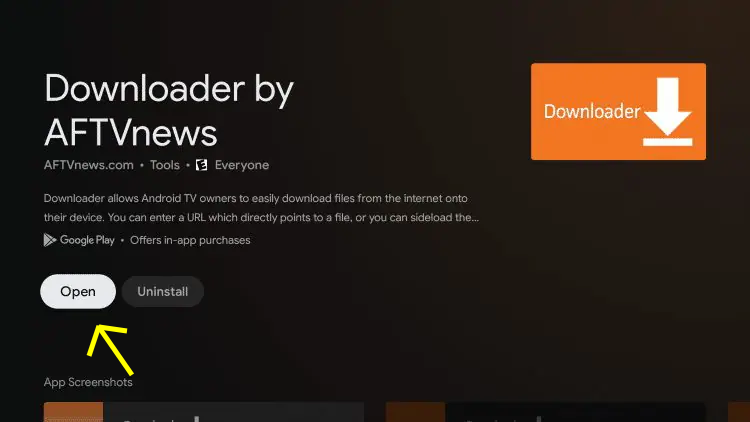
    Mobile app download page for AFTnews with options to open or uninstall, and a download icon

After installing the Downloader app, your next step is to install the TiviMate app.
Use the Downloader app to enter the TiviMate download link.
👉 Click here for TiviMate installation instructions(only after Downloader is installed).